The start page
The start page is what the analyser shows when nothing is open, and what Help ▸ Start page raises over an open workspace. It is one surface: it asks What would you like to do? — a short numbered list, a box for your own words and one button — and the analyser's own actions follow it under Or open directly, with your recent projects and evidence bundles under Recent.
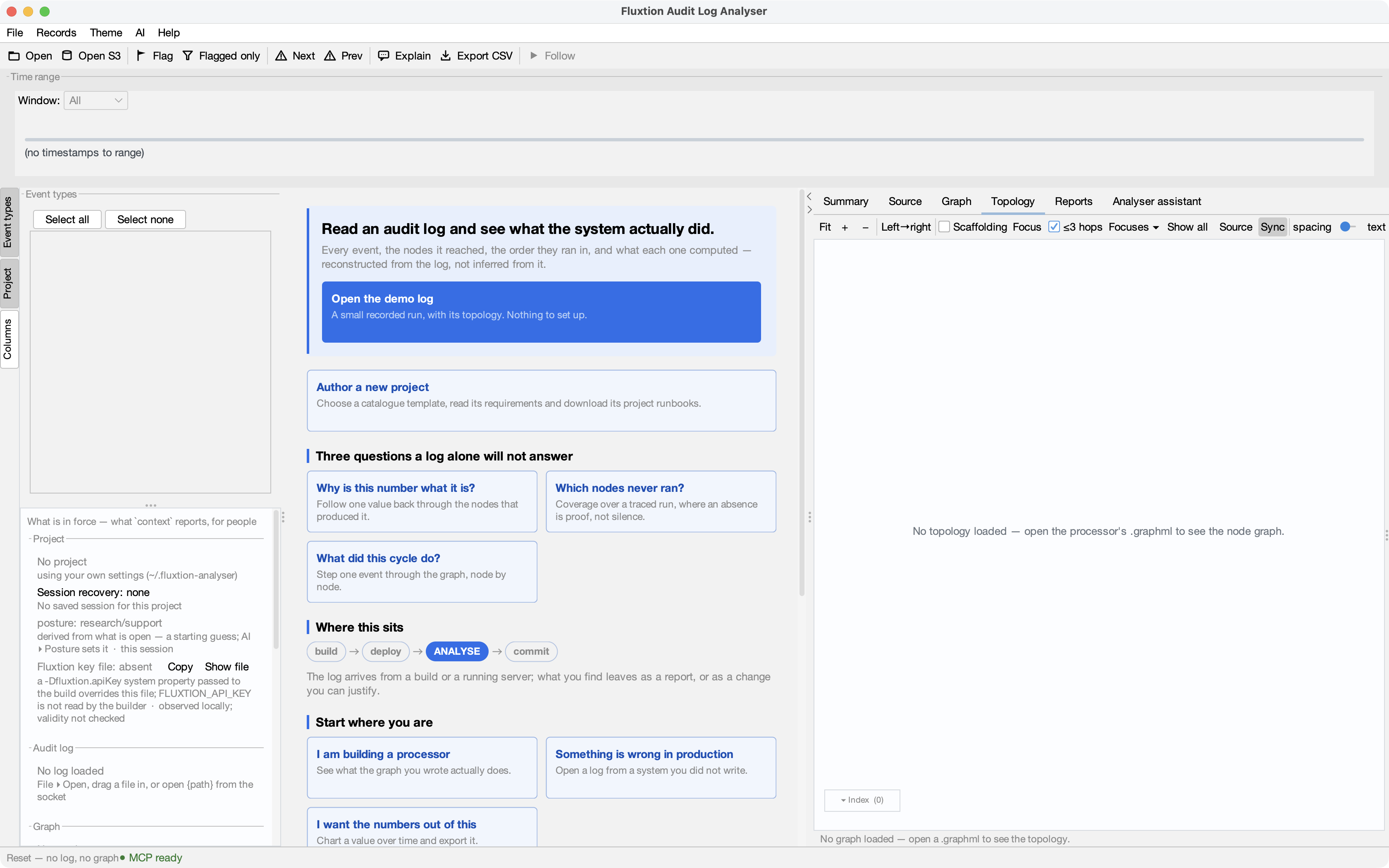
What would you like to do?
| # | Entry | The button | What it does |
|---|---|---|---|
| 1 | Run me through a demo | Play | Opens the sample project and plays the DEMO journey Find the first recorded breach — no AI, no key, no network, nothing sent. Its conversation is scripted and labelled Simulated conversation. |
| 2 | Build a new application with me | Start building | Describe what you want in the box. The analyser reads the starter catalogue when you press the button, then drafts "I want to build: … Help me choose components, generate it, run sample events and show me in the evidence that it behaves as intended.", naming the templates. New project from template… is beside it. With no AI: New project from template…, New project… and Copy prompt. |
| 3 | Teach me by building an example | Teach me | Opens the sample DEMO project, then drafts "Teach me Fluxtion by building a small example with me: explain events, triggers and dispatch from the evidence as we go." With no AI it plays the DEMO guided tour instead, and offers Guided tour, Sample project, Assistant settings and Copy prompt. |
| 4 | Set up a project from my code | Set up… | Toward Claude Code: your folder chooser, then a set-up question is placed and Start armed — Claude looks at the folder and proposes the set-up, you answer each item, and the analyser applies the ones you accept (onboarding). Toward the in-app assistant (which cannot read a folder): New project…, which offers what it finds and lets you choose. |
| 5 | Open an evidence bundle someone sent me | Open bundle… | Your file chooser, then the bundle's verification. A bundle that does not verify is not opened and nothing is written: you see why, with Close. A verified one opens as a disposable copy, and then a question about it is drafted. |
| 6 | Which starter template suits what I'm building? | Show templates | Reads the starter catalogue when you press the button (never before), then drafts a question naming its templates. New project from template… is beside it. |
| 7 | Explain an audit log I already have | Open log… | With no log open, your file chooser and the load first; then a question about that log is drafted, naming it. |
| 8 | What can this tool do? | — | Puts a question in the box. |
- Choosing does nothing yet. Click a row, use ↑ / ↓ and Enter, or press Alt+1 … Alt+9 (⌘1 … ⌘9 on macOS, where ⌥ and a digit types a character; each row's tooltip names its shortcut). A flow entry (1–7) becomes the chip above the box and gives the button its verb; a prompt entry (8) adds its words to the box after anything you have typed. Typing a digit in the box types a digit. Nothing is sent, opened, fetched or started until you press the button.
- Your own words in the box are added to the chosen entry's draft after a blank line (entries 2 and 6 put them in the sentence). With no entry chosen, the button is Send and the box is your question. Choosing the same prompt entry again does not add its words twice.
- Enter presses the button; Shift+Enter starts a new line — the same keys as the assistant's composer, and the line under the box says so. The button is the page's main action: accent-coloured while it can be pressed, at the box's right edge.
- The button never starts Claude Code. A draft for Claude Code is placed in its composer, ready for Send; Send starts Claude Code, and the folder confirmation and the profile in force apply. With Allow the analyser to start Claude Code switched off, for example, the draft is still placed and the status line says why Send is refused.
- With nothing open, the assistant opens in its own window with the draft in its composer, so you can see where your question went. Over an open workspace it returns there and shows the docked tab.
- The sample project and a bundle's working copy are folders the analyser owns, so a Claude Code session for them works in the analyser's private scratch folder, and the session header says so. Claude reads the evidence through the analyser's verbs.
The Build and Teach pathways
Entries 2 and 3 lead into building and learning.
- Build a new application with me starts the build path: the request it drafts asks the assistant to help you choose components, generate the application, run sample events and show you the evidence. Generating and running need an assistant that can edit files and run commands, such as Full Claude Code; in Safe analysis Claude Code reads and advises but writes no file. Without one, start from a template (New project from template…) and build it yourself. Build with Claude is the path in full, and Check your criteria against the evidence the last step.
- Teach me by building an example starts the learning path in the sample DEMO project, where every concept the assistant explains can be pointed at in a real record. Building the example, writing and running its code, needs an assistant that can edit files and run commands, such as Full Claude Code or a client in your terminal; in Safe analysis, or with the in-app assistant, the lesson explains from the sample project's evidence instead and writes no file. With no AI it plays the guided tour (Guided tour and sample project). To run a session for others, see Running a demo.
Today both pathways draft a request and open what already exists. A fuller authoring journey, from a description to a runnable application with an editable input scenario and a check of your criteria before and after a change, is planned and not built.
Which assistant answers
The page asks the assistant you last chose on the Assistant tab (remembered on this machine only). Claude Code can
answer when Allow the analyser to start Claude Code is on and claude is installed (a file check, nothing is run);
the in-app assistant can answer with a provider and key. If the one in force cannot and the other can, the button
reads Ask with Claude Code (or Ask the in-app assistant) and pressing it chooses that one.
Set up AI on the start page. Under the box, the start page has one line about AI. On a first run this line is the question How do you want AI to work with the analyser? — No AI, your own client, Claude inside or both — with Continue and Not now. It is offered once — on a new installation, and on one upgraded with nothing set up — and after that it is one line, such as AI: not set up · Claude Code found — Set up AI… or AI: Claude inside the analyser (Safe analysis) — Change…. This block and line replace the Connect an assistant buttons the page used to have: your own client is one of the block's four choices, and Set up AI's Your own AI client screen does what those buttons did, step by step. See Set up AI.
The first question with nothing set up opens Set up AI instead of an answer, and the page says Your question waits, and is placed for the assistant you set up — nothing is sent. After Finish your question is placed for that assistant — in Claude Code's composer, or in the in-app composer — without pressing the button again; nothing is sent until you press Send, and Claude Code still asks about the folder when it applies. Choose No AI, or Cancel, and your words stay in the box. Every such question opens it again while nothing is set up. The flows (the demo, build, teach, set-up, a bundle, the templates, a log) never open it: they work with no AI.
A question about evidence with no log open — What happened here?, Why did the breach fire? — would get a general answer, so the page says so first: No log is open — the answer will be general. with Open the sample, Open a log… and Ask anyway. Nothing is placed or sent until you choose one. After the sample or your log has opened, the question goes on as if you had just asked it, now about that log; close the chooser without choosing and the line stays. A question about the tool itself (What can this tool do?) is not held.
With no AI configured, every entry still ends somewhere: the demo plays, a bundle or log still opens, and each entry offers buttons that run what you would otherwise do yourself — Assistant settings, Set up AI… (it opens Set up AI at Your own AI client), New project…, New project from template…, Evidence bundles guide, User guide — and Copy prompt. The start page's Copy prompt copies your question only: no record text, no glossary, never your REST token. If Claude Code is switched on but not found, the page lists every place it looked and offers Install Claude Code.
When your full Claude Code is in force (◆ Full Claude Code in Set up AI or the quick switch, or its switch in
Settings ▸ Assistant), the
box carries the same marker as the assistant's composer: a coloured border and the badge ◆ Full Claude Code (\<mode>)
— on: it runs at the next Start · your tools and permissions (◆◆ for acceptEdits and auto, which ask about fewer
actions).
Prompt packs
You can replace the numbered list for this window by dropping one Markdown file (.md) on the start page: a
prompt pack. Its entries behave as entry 8 does: choosing one adds its words to the box, and nothing is sent until
you press the button. ← Return to main options (Alt+R; ⌘R on macOS) brings the analyser's own list back. A pack is
never saved.
A pack is written like this:
# Title                                   ← one line, at most 60 characters
An optional one-line description.         ← at most 140 characters
1. **Label** — the prompt's words.        ← 1 to 9 entries; label at most 60 characters, words at most 500
Prompt packs has the whole format, what the reader tidies and what it refuses, and a sample pack to try. An entry can also point at an example project to download, pinned to one commit: Starter templates and examples ▸ Example entries.
Or open directly
Under the question, every action the analyser offers without typing is one button — an icon and a short label — in four small titled blocks, each heading above its buttons. The blocks sit four across on a wide window and wrap to three, two and one as it narrows; the Settings block carries a one-line caption under its buttons. (The Connect an assistant block is gone: the AI block or line above is the one door, Set up AI….) Hover one for what it does (the sentence the old card carried); each is reachable with Tab and pressed with Space or Enter, and each does exactly what its card did.
| Group | Buttons |
|---|---|
| Explore DEMO | Guided tour (four spotlight stops in the local DEMO project) · Sample project (the same DEMO log, topology and source, at your own pace) |
| Open | Project · Evidence bundle (verified, then a disposable copy; no replay) · Audit log · GraphML |
| Create | Project profile (settings for existing source; no code generated) · From template |
| Settings | Settings (source and assistant settings: the open project's, or the global defaults) · Fluxtion key (present or not; needed only to regenerate a processor) |
You can also drop an .fexp bundle, an audit log, a GraphML file, a Spring XML design or a prompt pack (.md)
anywhere on the page.
Recent
Recent projects and Recent evidence bundles sit side by side (one under the other in a narrow window). A row names the workspace or the bundle and its path; its … button removes it from the list, reveals it in your file manager or renames it. A bundle's row also carries its sender's note — their words, not a verified fact.