Start here
The analyser is a desktop canvas for Fluxtion audit evidence. A Mongoose/Fluxtion processor records every cycle it runs: the event that arrived, and each node that logged, in order, with what it wrote at the audit level it was given. The analyser opens that record, and you, or an AI you connect, read it, filter it, chart it, step through it and report on it. What an AI finds appears on the canvas as something you can click and check. The analyser does not run your application. The Claude Code the analyser starts in its own panel can run commands on your computer only if you turn on Full Claude Code, and then only as your own Claude Code rules allow. A client you run yourself, such as Claude Code in a terminal, works under its own rules, as it always does.
Pick your door
-
I have an incident, and I use Claude Code, Codex or another MCP client
-
I want to ask questions inside the analyser
- Install and run the analyser
- Choose an assistant profile. Safe analysis is the default card.
- Ask the assistant
-
I'm building a Fluxtion application with Claude
-
I'm looking around, or running a demo
- Install and run the analyser
- On the start page, choose 1. Run me through a demo, then press Play. It needs no AI and no key.
- Running a demo
Administering it for a team? Read Security model and limits and the Settings reference. Every assistant switch is per user on each machine. Managed policy says what an administrator can and cannot enforce today.
What you need
- Java 21 or later. JBang is the easiest way to run it; a plain jar works too (Install & run).
- Optionally, an AI. Any one of these works: Claude Code installed and logged in; Codex or another MCP client; or an API key for Anthropic or OpenAI.
Every AI is off by default. With the assistant Off the analyser is still the whole tool: every view, chart, report, walk and evidence bundle works. With the assistant Off and External MCP/REST access off, nothing in the analyser sends your evidence anywhere.
The start page in one picture
The analyser opens on the start page when nothing is open. Help ▸ Start page brings it back.
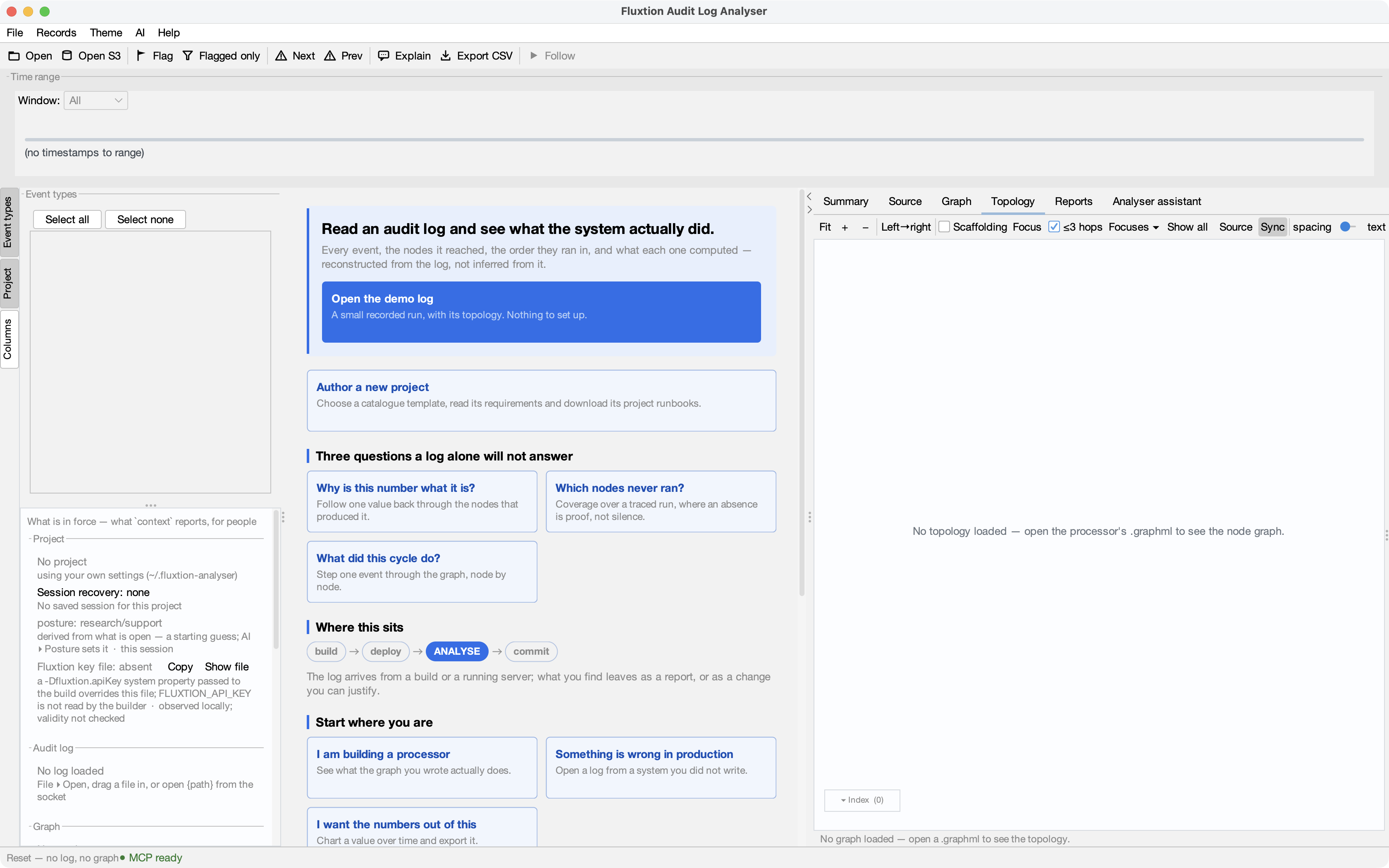
| On the start page | Your door |
|---|---|
| The AI line's Set up AI… ▸ Your own AI client connects · 7. Explain an audit log I already have | Diagnose an incident |
| 7. Explain an audit log I already have · 8. What can this tool do? · your own question in the box | Ask inside the analyser |
| 2. Build a new application with me · 4. Set up a project from my code · 6. Which starter template suits what I'm building? · Create | Build with Claude |
| 1. Run me through a demo · 3. Teach me by building an example · 5. Open an evidence bundle someone sent me · Explore DEMO | Look around, or run a demo |
Choosing an entry sends nothing and opens nothing. Only the button does that. The start page describes each entry.
Three things that are always true
- Nothing you open goes to a model until you ask. Choosing an entry, opening a log or a bundle, and playing a demo send nothing. You ask by pressing Send in the analyser, or by prompting a client you connected with External MCP/REST access on. Once you ask, no profile is local-only: what you ask, and the evidence the assistant reads, go to that assistant's model provider; a client you connected sends what it reads to its own provider. Claude Code's Start in the analyser contacts Anthropic to check you are signed in before your first Send, but sends no record content. In Full Claude Code, Start also runs your and the folder's hooks and connects your MCP servers.
- What an AI changes on the canvas, you can see. Filters, charts, flags, selections and highlights happen in the window in front of you, and you can reverse them: widen the filter, close the chart, clear the flag. One is not reversible: deleting a saved chart's definition. The calls that replace what is open, write a file or merge saved state are marked destructive, so your MCP client can ask you first. In Safe analysis, the analyser itself asks you about each of those calls.
- A file an assistant names through the analyser is written only where you allowed it. A screenshot, a report's PDF or CSV, a reel or a bundle is written only with Allow assistant file exchange on (off by default), only inside the exchange folder you chose, and never over an existing file. Saved reports, walks and charts are kept in the project, as yours are. Full Claude Code, and any client you connect from outside, also have tools of their own (shell, edits), which follow their own rules, not the analyser's.
Where help lives
- This site is the authoritative guide. Each page here is the reference for its subject.
- Help ▸ User guide in the analyser is a short in-app guide. When it and this site disagree, this site is right.
- Prompt packs are questions to start from: the start page's numbered list, or a pack you drop on it (Prompt packs).
- Release notes list what changed in each version.