Spotlights, walks and reels
An assistant can point at what it is talking about. An explanation worth giving twice can be saved as a walk you replay without the assistant, and a walk can be sent as a reel to someone who does not have the analyser.
Ask it to show you
An explanation you have to map onto the screen yourself is half an explanation. Any assistant driving the analyser — the built-in one, or an MCP client such as Claude Code — can point: it dims the window, cuts out the things it is talking about, and gives each a short numbered callout. You ask for it in plain words:
| You say | What the assistant can do with it |
|---|---|
| "Show me where live orders first went above 1 — point at it." | it finds the record, selects it, and lights that row |
| "Where do I start a project from a template?" | it opens the Project menu and lights New project from template… |
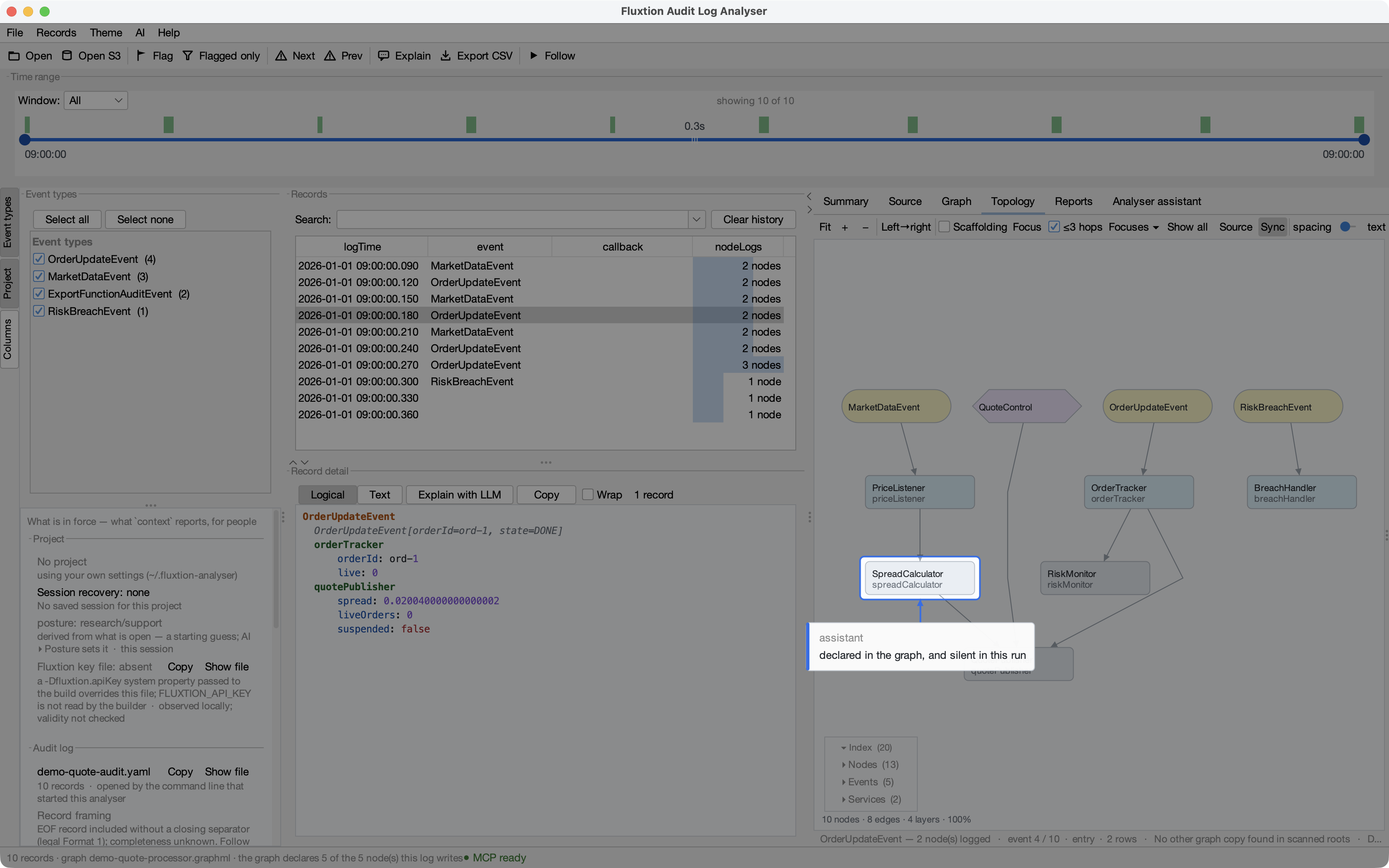
| "Which node never logged? Highlight it on the graph." | it runs coverage, opens the Topology tab, and lights the node |
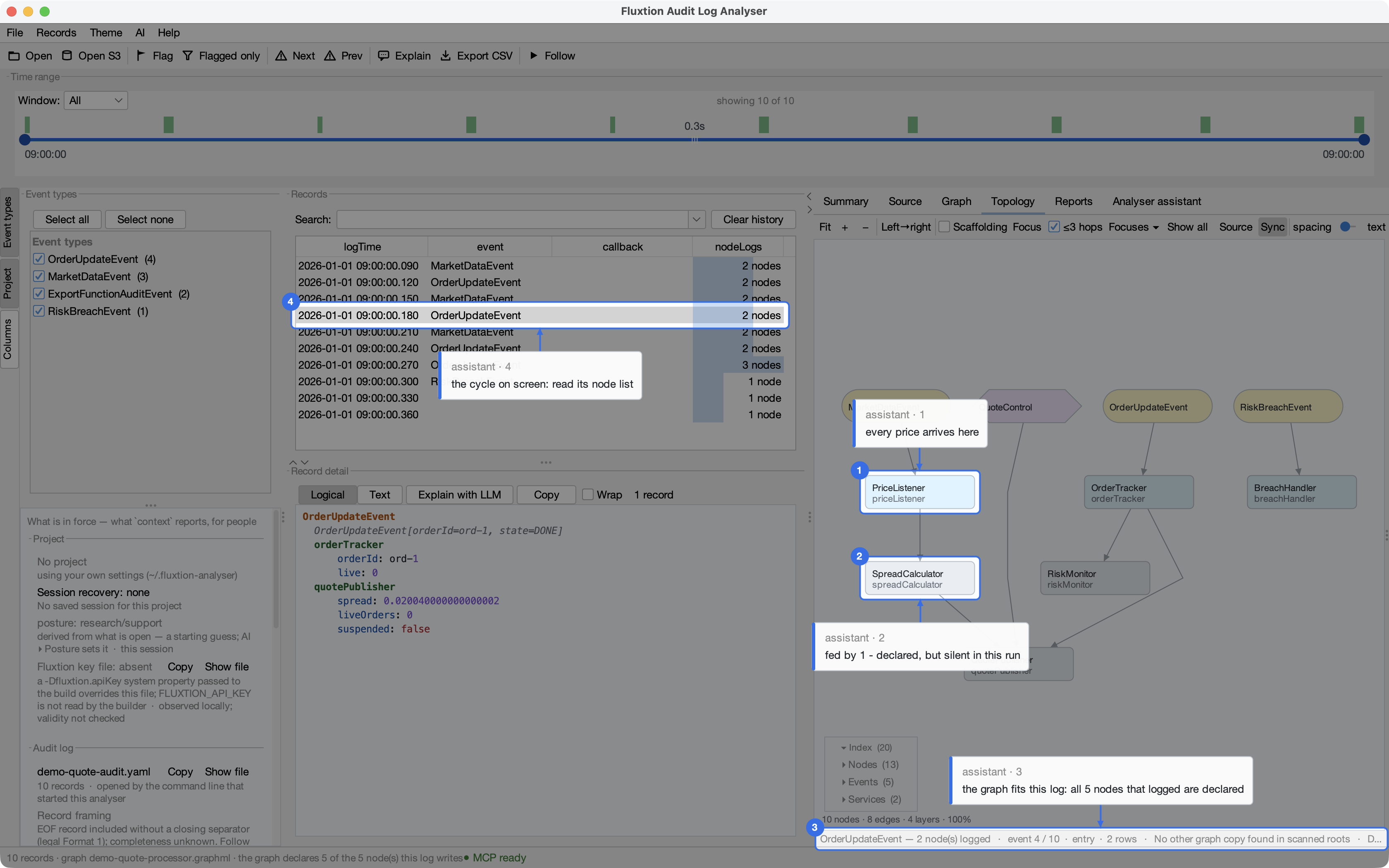
| "Walk me through this cycle and highlight each step." | it lights the record, the node's lines in the detail, and the node on the graph — numbered 1, 2, 3 — and its sentences use the numbers |
| "Highlight everything involved in that breach." | up to six things lit together, each with its own callout |
| "Point at the note on the chart you mean." | it lights that numbered note on the plot |
| "Clear the highlights." | they go out (so does any click, or Escape) |
(How an assistant answers is up to the assistant; the right-hand column is what the actions make possible, and what the guidance it is given asks of it.)
The answer stays one press away. With the assistant docked in the canvas, a spotlight on another canvas tab (the Topology, say) shows that tab — and the canvas says Spotlight on Topology — the answer is in Analyser assistant with ↩ Back to the answer, which you can press without putting the spotlight out first. Popped out, the answer is in its own window and never moves.
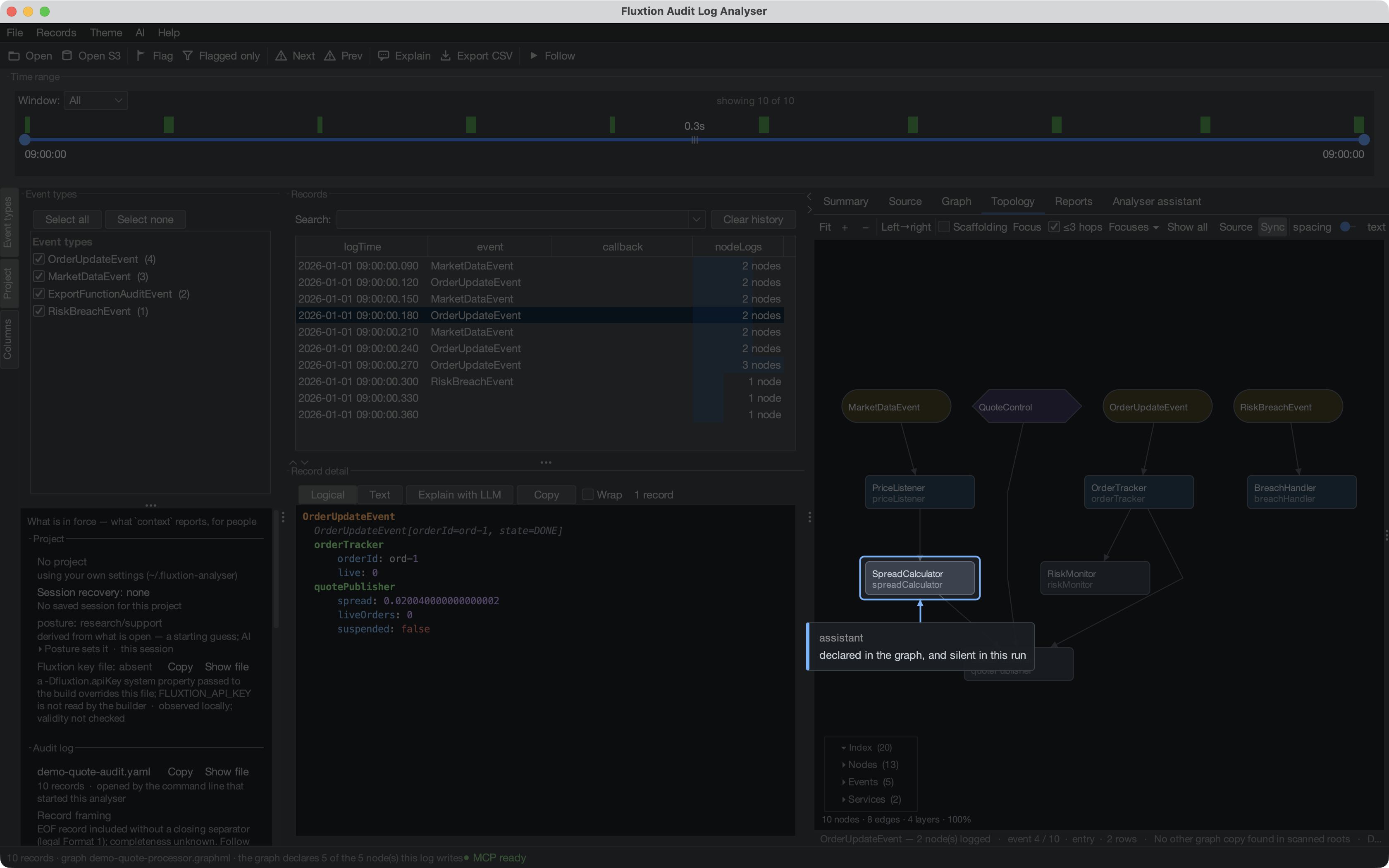
One thing lit — here, the demo's one real finding, a node the graph declares that never wrote audit output:
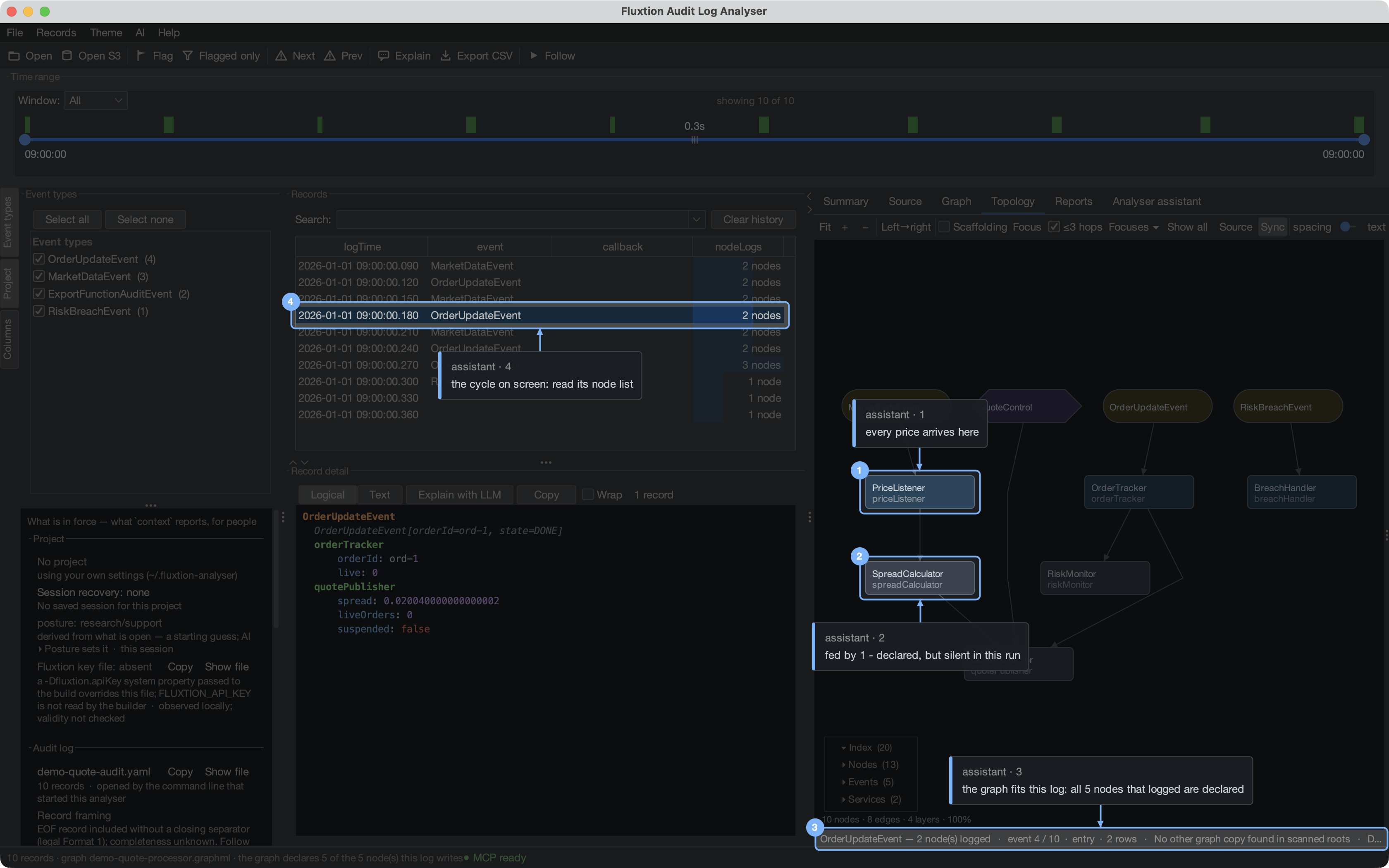
And a finding that is a relation between things — the node every price arrives at, the node it feeds that stayed silent, the line where the analyser states how the graph fits the log, and the record on screen — lit together and numbered, so the assistant's sentence ("1 feeds 2, and 2 never logged") finds its place on your screen:
Four things worth knowing before you rely on it:
- A callout is the assistant's words, not the analyser's. That is why every one is tagged assistant. It shows you where to look; whether the claim is true is what the thing it points at tells you. If a callout says something the screen under it does not bear out, believe the screen.
- Highlights are temporary by design. Any click, Escape, or any change of view (a new filter, another record, a redrawn chart) puts them out, because a highlight left pointing at where something used to be is worse than none. A highlight is never saved by itself — only when you save it as a spotlight walk, and then as a step you replay, not as a finding. A finding you want to keep is a flag, a chart note or a report: ask for one of those as well.
- Everything lit has to be on screen together. A topology node and a note on a chart live on different tabs, so the assistant lights those one after the other rather than at once — and says so if you ask for both.
- An assistant is told to do this unprompted — the guidance travels with every way one connects (the built-in assistant, a copied prompt, an MCP client) — but only where you would otherwise have to hunt. If it explains something without pointing, "show me" is all you need to say.
Source targets. Design-line and bean targets are measured after scrolling settles and must fit inside the XML
text viewport. A set that cannot fit together is refused. With add: true, targets scrolled
away appear in wentOut, and surviving highlights retain their numbers. Successful bounds
refer to the painted cut-outs in the default screenshot, with positive dimensions.
Save it as a walk
An explanation worth giving twice is worth keeping. A spotlight walk is a named sequence of spotlight steps, saved in the project like a report, that you — or a colleague who opens the same project — step through on the analyser itself, with no assistant connected.
- Save one yourself. While something is lit, right-click the spotlight: Save as new walk… keeps exactly what is lit, its callouts, and the view it is lit in (the tab, the filter, the selected record, the selected chart, a saved topology focus). Add to walk appends the lit things as the next step; during a walk, Replace this step re-records the step you are on. The right-click keeps the spotlight on. A chart's zoomed window is not saved, and the save says so.
- Or ask for one. "Save that explanation as a walk called 'why quoting stopped'." The assistant sends
walk {name, steps}; the walk says it was saved by the assistant. - Play it. The Reports tab's Spotlight walks list has Play and Play selected step; Rename, Delete and Restore deleted… are under More. The Project panel counts walks. While a walk shows, a strip on the spotlight carries ◀ and ▶ (or the ← → keys), the step number, and anything a step could not show. A click elsewhere or a change of view ends the walk. Play selected step starts at the selected stop.
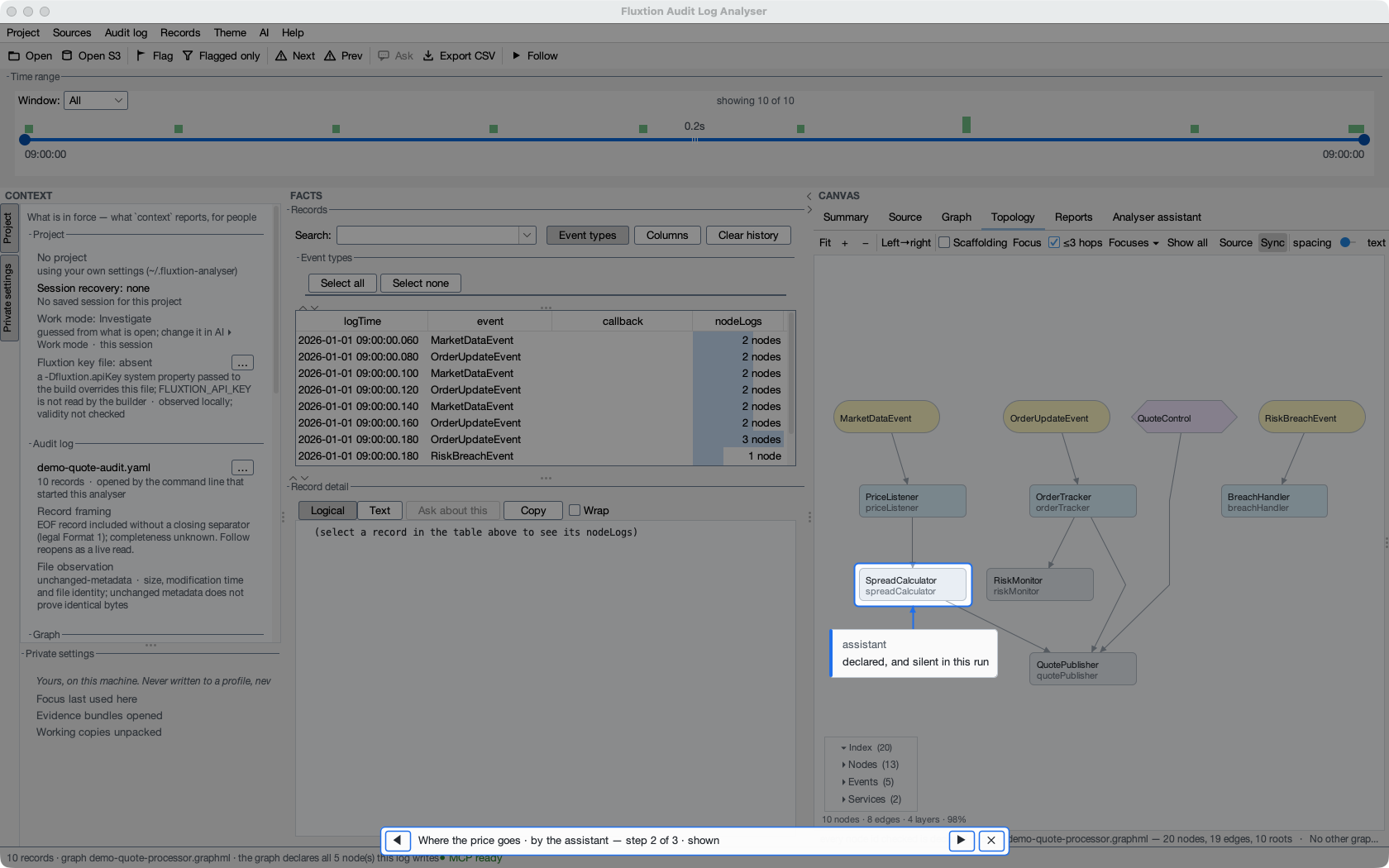
- A walk is bound to what it was saved against. Each record, chart and graph node a step points at is checked against what is open now. Played against another run, a record that differs is shown as not available rather than lit somewhere else, and a callout on something that changed is marked (historical); one whose identity cannot be checked is marked (unresolved). A walk never opens, edits or saves a chart, a filter or a focus of yours — it only selects what is already there. A chart that is closed is named, with an Open chart button for you to press.
- A walk never claims more than it can show. If the log's file changes after it was read, the walk's record targets are marked unresolved and go out. A step whose record its own filter hides is not shown, and so is a detail pane or topology canvas that would describe a different record. A step naming a record the log does not have is refused whole, and the previous step stays on screen. With Follow off, nothing re-reads the file, so a step that rests on records or charts says that current means unchanged since it was saved, not unchanged on disk.
- Editing a walk while it plays. Saving over it, deleting it, importing settings over it or switching project ends it and says why; renaming it keeps it playing. Adding to a walk whose chart steps were saved against another run is refused, rather than silently moving those charts to this run.
- Walks travel with the project. Settings export shares them with the reports, and a walk made of tabs, panels and graph nodes — no records — plays with no log open at all.
Java source targets. Java targets resolve the saved class name and line against the roots currently in force. CURRENT does not
certify the source revision against the saved caption. The callout says “saved source revision not compared”,
and the target reason in context.walks states the same limitation. A caption about return 0.004 can therefore
appear beside return 999, but not without that disclosure. “Source/run: unverified” answers a different question:
whether source is paired with the log.
While Java is being read, the strip remains Preparing, and the accepted dialogue prefix does not advance. Only the matching lighting result settles it. Reads are bounded and off the UI thread; a failure or expiry settles as not shown. Switching tabs, including with the native keyboard action, ends incompatible pending walk work. The walk's own view changes retain their operation ticket and do not cancel themselves.
Walks with a conversation
A walk can carry a conversation shown beside it as it plays — a conversation journey. Try the DEMO one: Find the first recorded breach.
- Write or capture it. Reports ▸ Spotlight walks ▸ More ▸ Conversation… (or Include conversation… on the spotlight's right-click menu) opens the editor. Write turns yourself, or add finished turns from the current chat — only their question and answer, never the hidden context — and choose, for each step, the turn it reveals up to. Preview what leaves this machine shows the exact words that travel with the walk. Nothing is added until you add it.
- It says what it is. Written turns are a Simulated conversation; captured, untouched turns a Recorded conversation; captured turns you edited, an Edited recorded conversation. Authors are declared, never verified.
- Playing one. The assistant shows the conversation up to the step, labelled, beside what the analyser actually shows for that step: Preparing evidence…, then each target's real state. ◀ ▶ and Play selected step reveal exactly that step's part; nothing is re-run. A step whose evidence cannot be shown says so, and the conversation stays at the last step that was shown. Nothing is sent to a provider and nothing is written while it plays.
- Ask your own. Ask about this evidence ends the journey and starts a fresh live chat — none of the journey's words go with it — or Connect your CLI assistant. A journey waits for a live turn in progress to finish; a live question ends a journey.
- Recording a Claude Code conversation. With Claude Code in force, the editor offers the Claude Code conversation instead: only your sent turns and Claude's finished answers — never a tool line, a status note or a refusal. The walk then records its source — claude-code, the model and the Claude Code version, and nothing else (no session id, path, account, cost or budget) — as conversation version 2; every other walk stays version 1. A turn over 16 KB is offered cut at 16 KB and marked [truncated by the analyser]; past 200 turns or 512 KB the most recent turns are offered, and the editor says how many earlier ones were left out. An analyser from before version 2 keeps such a walk's conversation when it saves, and this one drops (and names) a step's reveal that no longer matches a turn, rather than playing it.
- Sharing. The conversation travels with the walk: projects, Settings export, the bin and evidence bundles. A machine path in a turn is removed when a bundle is written, and named. An analyser from before conversation journeys plays the walk without its conversation, and keeps the conversation if it saves the project.
Send it as a reel
A walk replays beautifully for somebody who has the analyser. For a manager, a customer, or a thread where you have to show rather than tell, record it as a reel: one self-contained HTML page that opens anywhere.
- Record one. Reports ▸ Spotlight walks ▸ More ▸ Record reel…, and choose where to write it. The analyser
plays the walk, waits for each step to actually settle, and photographs the window — the spotlights, their
callouts and the playback strip are in the picture, because that is what the walk shows. Or ask for one:
walk {name, reel: "why-quoting-stopped.html"}, which writes inside the exchange directory like every other file the assistant writes. - What is in it. A title page naming the walk, its purpose, the audit log, its record count, its time span and the event processor the run came from; a page per step with the step's own words and its callouts; and a finish page. Every frame is embedded in the file, so there is nothing to keep beside it.
- The finish page is the point. A reel is pixels, and pixels can be cropped, staged or simply wrong — a viewer
cannot tell. So if the session came from a verified evidence bundle, the finish
page carries its
sha256:identity, its file name as a link, the limits the bundle itself states, and the one sentence that answers how do I know? — open this bundle in the Fluxtion Audit Log Analyser and replay these steps yourself against the real log. Send the.fexpbeside the page and the link works. - And if there was no bundle, it says so. A reel recorded from an ordinary session ends by saying plainly that there is nothing to open and no identity to check. An unanswered question reads as a claim, so the question is answered on the page rather than left open.
- A step that could not be shown is not hidden. Partly shown and not shown are carried onto the page with the reason the analyser gave, exactly as the strip gives it.